Menus
Create, price, publish, share, measure, and export product menus in Higher Origins.
Updated Sep 17, 2026 Source reviewed Sep 17, 2026 4 minute read
For: sellerssales teamsbrand managers
Overview
A Higher Origins menu is a shareable cannabis offer. It brings selected products, variants, prices, a saved visibility label, and buyer license verification together without changing the underlying product or inventory records.
Use a menu for a targeted assortment or direct buyer link. Use Marketplace for broader business and product discovery. Both workflows can lead to carts and Orders, while menu engagement helps the seller understand how recipients use the offer.
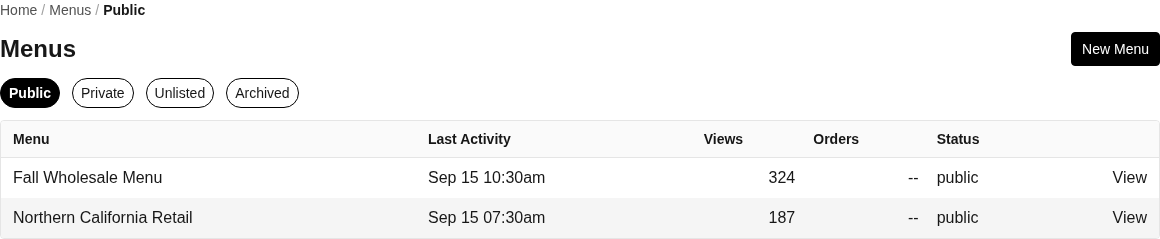
Menu visibility tabs keep public, private, unlisted, and archived catalogs distinct.
Open Menus to create or manage a menu.
Lists and visibility
Public, Private, and Unlisted are saved visibility labels. They do not currently change the license-verification gate on a direct menu link.
Every direct menu link asks the buyer to use a signed-in facility or enter a California license number before ordering. Signed-out entry confirms that the record exists; it does not prove the visitor controls the license.
A forwarded link reaches the same license gate. Treat Private and Unlisted as discovery choices, not as password protection or seller approval.
Archived is shown as a menu lifecycle state, but Settings does not currently expose an Archive control. An existing archived menu can still reach the license gate through its direct link.
Create a menu with New Menu, then open it to use Overview, Products, Insights, and Settings. Edit changes its saved details. Delete permanently removes an eligible menu after confirmation and makes its buyer route unavailable. Status controls change the visibility mode.
Add and price products
Add Product searches eligible catalog products and adds the selected product to the menu.
Open a menu product to edit per-variant override prices for this menu. The current licensed-buyer view can replace that value with exact buyer, regional, or base pricing, so verify the price through Open Menu before sharing.
Remove Product takes the product out of the menu without deleting the Product or its Inventory.
Check product status, variants, inventory links, and pricing when an expected offer cannot be added or shown.
Share and export
Open Menu launches the customer-facing menu so you can review what recipients see.
Copy Link copies the direct menu URL for email, messages, or your own website.
Download QR creates a 512 pixel PNG for the menu's stable short URL.
Export PDF creates a printable menu from the current saved products and prices.
Review the customer-facing menu after changing products, variants, visibility, or prices. A successful save does not by itself confirm that every offer has the inventory and price needed for ordering.
Overview and Insights
Overview summarizes menu activity and recent interactions. Insights and the Interaction Log show visits, scans, requests, and other events after Higher Origins records those events for the menu. Detailed analysis requires Membership; accounts without it see the available preview or membership boundary.
Requests
Open Requests to review requests submitted through menus.
A request record preserves the information provided by the visitor and its relationship to the originating menu. Open the record to follow up through the appropriate sales workflow. The current request area is primarily a review queue; use Trading Partners, Messages, or Orders for the resulting commercial work.
Common problems
If access must stop, delete the menu from Settings > Danger Zone after exporting anything you need to retain. Public, Private, Unlisted, and Archived do not currently revoke a direct link.
If a product or price is missing, verify product lifecycle, variants, inventory, and any menu-specific override.
If an export looks stale, save menu changes and create the PDF or QR output again.
If Insights are locked, confirm the selected business and its membership level.
Focused guides
Create and share a menu: assemble products, choose visibility, and distribute the offer
Place an order from a menu: follow the buyer's verification, cart, review, and submit flow
Related resources
Products: prepare the catalog records and variants offered on a menu
Inventory: check the stock and compliance records behind an offer
Orders: follow carts and purchases created through a menu
Trading Partners: send offers and coordinate buyer follow-up
Marketplace: understand the other customer-facing product discovery flow